






Your team spends hours every week moving information between systems. Someone suggests automating the process.
Sounds reasonable. Why keep doing manually what software could handle?
But when you sit down to explain how the workflow actually works, things get complicated.
Marketing follows one process. Sales follows another. There are exceptions nobody has documented, and the person who knows why things work this way happens to be on vacation.
Suddenly, building the automation seems like the easy part.
This is where a lot of automation projects get into trouble. Teams get excited about what the technology can do before they've figured out what the process needs to do.
Before you automate a workflow, you need to understand how it actually works. Not just how it's supposed to work.
At media junction, we help businesses connect customer systems, workflows, and the information people need to do their jobs. That work often starts with understanding what happens between systems and teams, not choosing another tool.
In this guide, we'll walk through how to map a business workflow, identify what's slowing it down, and decide which parts are worth automating.
What is business workflow mapping?
Business workflow mapping is the process of documenting how work moves from start to finish, including the tasks, people, systems, information, decisions, and handoffs involved.
Think of it as drawing a picture of how something actually gets done at your company.
A business process describes the broader activity and what it's meant to accomplish.
A workflow shows the specific steps people and systems take to complete it.
For example, lead management is a business process. A workflow might show what happens when someone fills out a form on your website, how their information enters HubSpot, who determines whether they're qualified, and what happens next.
The map helps everyone see the same process instead of relying on different versions of it.
According to IBM's guide to process mapping, visualizing a process helps teams identify bottlenecks, redundancies, and opportunities for improvement.
And you don't need expensive software to get started.
A whiteboard, a shared document, or a simple flowchart can do the job. What matters is capturing enough detail to understand how the work happens.
Why should you map a workflow before automating it?
Because automation is very good at repeating instructions.
That's great when the instructions make sense. Less great when they don't.
Imagine your sales team manually assigns incoming leads. Some get routed by territory, others by company size, and a handful of strategic accounts always go to a specific representative.
Now imagine automating that process without documenting the exceptions.
The automation might assign leads quickly and consistently. It could also send important opportunities to the wrong people.
You've made the process faster, but you haven't necessarily made it better.
Workflow mapping helps you catch problems like these before they become automated problems.
It can reveal:
-
Duplicate work: Two teams enter the same information in different systems.
-
Unnecessary steps: Someone reviews or approves something that no longer needs approval.
-
Missing information: A task can't move forward because required data isn't available.
-
Unclear ownership: Nobody knows who's responsible when a request doesn't fit the usual process.
-
Undocumented exceptions: Employees handle unusual situations based on experience rather than agreed-upon rules.
-
Poor handoffs: Information gets lost when work moves between departments.
Sometimes you'll discover that automation is exactly what you need.
Other times, you'll find that a few process changes could eliminate the problem without introducing new technology.
That's a useful discovery, too.
Don't automate a step you shouldn't be doing in the first place.
How do you map a business workflow step by step?
Let's use a common example: a new lead submits a form on your website and needs to reach the right sales representative.
The goal is simple enough. But there may be more happening behind the scenes than anyone realizes.
We'll use this example through all seven steps.
Step 1: Define where the workflow starts and ends
Start small.
You don't need to map your entire customer journey or every process connected to your CRM.
Pick one workflow with a clear trigger and outcome.
For our example:
-
Trigger: Someone submits a contact form on your website.
-
Desired outcome: A qualified lead reaches the appropriate sales representative with enough information for meaningful follow-up.
-
End point: The lead has an assigned owner and a documented next step, or enters an appropriate nurture process.
That last part matters.
A workflow isn't complete just because an automation ran. It's complete when the intended business outcome has been reached.
Defining the boundaries also keeps the project manageable. Otherwise, a simple lead-routing discussion can turn into an attempt to redesign your entire sales operation.
Step 2: Talk to the people who actually do the work
This step can be surprisingly revealing.
Ask leadership how lead routing works, and you might get a clear, logical explanation.
Ask the person responsible for managing incoming leads, and you might hear something different.
"Usually, HubSpot assigns them automatically. Unless it's an existing customer. Then I check with the account manager. And if the company has multiple locations, I look at this spreadsheet first."
There it is.
The process on paper and the process in practice aren't quite the same.
Talk with the people who handle each part of the workflow. Ask them to walk you through a recent example.
Pay attention to the moments when they say things like:
-
"It depends."
-
"I usually check with someone."
-
"We have a spreadsheet for that."
-
"That's just how we've always done it."
-
"I'm not sure who owns that."
Those phrases often point to decisions, exceptions, or missing information that your automation will need to account for.
The goal isn't to catch anyone doing something wrong.
It's to understand the real workflow before changing it.
Step 3: List the tasks, decisions, and handoffs
Now document the steps in order.
For our lead-routing example, the workflow might look like this:
-
A visitor submits a website form.
-
HubSpot creates a new contact or updates an existing record.
-
The system checks whether the contact meets basic qualification criteria.
-
Qualified leads are assigned to the appropriate sales owner.
-
The sales representative receives a notification and follows up.
-
Leads that aren't ready for sales enter a suitable follow-up process.
That looks straightforward.
But take a closer look at step four.
How is the sales owner determined? Territory? Industry? Account ownership? Availability?
What if the lead already belongs to an existing customer account?
Those are decision points, and they need to be part of the map.
It's also helpful to distinguish three things:
-
Tasks are actions someone or something performs.
-
Decisions determine which path the workflow follows.
-
Handoffs happen when responsibility moves between people, teams, or systems.
A useful map shows all three.
Step 4: Identify the systems and information involved
Next, look at where information comes from and where it needs to go.
In our example, a website form captures the lead's details. HubSpot stores the contact record. Qualification rules determine what happens next. Sales needs access to the right information for follow-up.
But maybe territory assignments live in a spreadsheet.
Maybe account exceptions are documented in an internal knowledge base.
Or maybe the sales manager is the only person who knows why certain leads get special treatment.
These details matter.
Before automating, identify:
-
Which system contains the information needed for each step
-
Which system should be the source of truth
-
Whether the information is accurate and current
-
Whether the systems can exchange the necessary data
-
Who maintains the rules and documentation
You don't necessarily need to move everything into one system.
You need the right information available at the right point in the workflow.
That's the thinking behind connected workspaces: helping people work across tools without losing the context they need.
Step 5: Document exceptions and human decisions
Here's where the neat little flowchart gets interesting.
What happens when a lead doesn't fit the usual rules?
Maybe a prospect submits a form using a personal email address, but they're actually the purchasing director at a major account.
Maybe two sales representatives have relationships with different divisions of the same company.
Or maybe a lead requests something outside your normal service offering.
An automation needs instructions for what to do when these situations arise.
Sometimes the answer is a clear rule.
Other times, someone needs to review the situation and make a judgment call.
Document both.
For each exception, ask:
-
How do we recognize this situation?
-
What information is needed to handle it?
-
Can a consistent rule resolve it?
-
Does someone need to approve or review the decision?
-
What happens if the necessary information is missing?
This is especially important when AI enters the picture.
AI can help summarize information, classify requests, or suggest next steps. But that doesn't mean it should independently make every decision.
For high-impact, sensitive, or ambiguous situations, human review may still be the right choice.
Step 6: Find the friction before choosing what to automate
Now that you can see the whole workflow, look for the parts that aren't working well.
Maybe someone manually copies information that's already available in HubSpot.
Maybe every lead requires manager approval, even though most follow predictable rules.
Maybe leads sit untouched because nobody receives a notification when an assignment fails.
These are opportunities to improve the process.
But don't jump straight to automation.
For each problem, consider four options:
-
Eliminate it. Is the step necessary at all?
-
Simplify it. Could the task require fewer actions or less information?
-
Standardize it. Can everyone follow the same agreed-upon process?
-
Automate it. Once the step makes sense, can technology handle it reliably?
That order matters.
If an approval adds no value, removing it may be better than building an elaborate automated approval workflow.
If people enter the same information twice, connecting the systems may be better than automating a copy-and-paste routine.
The objective is a better workflow, not the largest possible collection of automations.
Step 7: Design the improved workflow and assign ownership
Now you're ready to map how the process should work.
Your future-state workflow might automatically create or update contact records, check qualification criteria, assign straightforward leads, and notify the right sales representative.
Unusual situations could go into a review queue with a clear owner.
That gives you a process that's more efficient without pretending every situation can be handled by a rule.
Before implementing it, make sure you've answered a few final questions.
Who owns the workflow? Who updates the rules when territories change? Who checks whether assignments are working? What happens when an integration fails?
And how will you know whether the new process is better?
For lead routing, you might measure assignment accuracy, time to assignment, or the percentage of qualified leads receiving timely follow-up.
A workflow isn't something you document once and forget.
It needs to evolve as the business changes.
What does a workflow map actually look like?
It doesn't need to be complicated.
For our lead-routing example, you can start with a simple table.
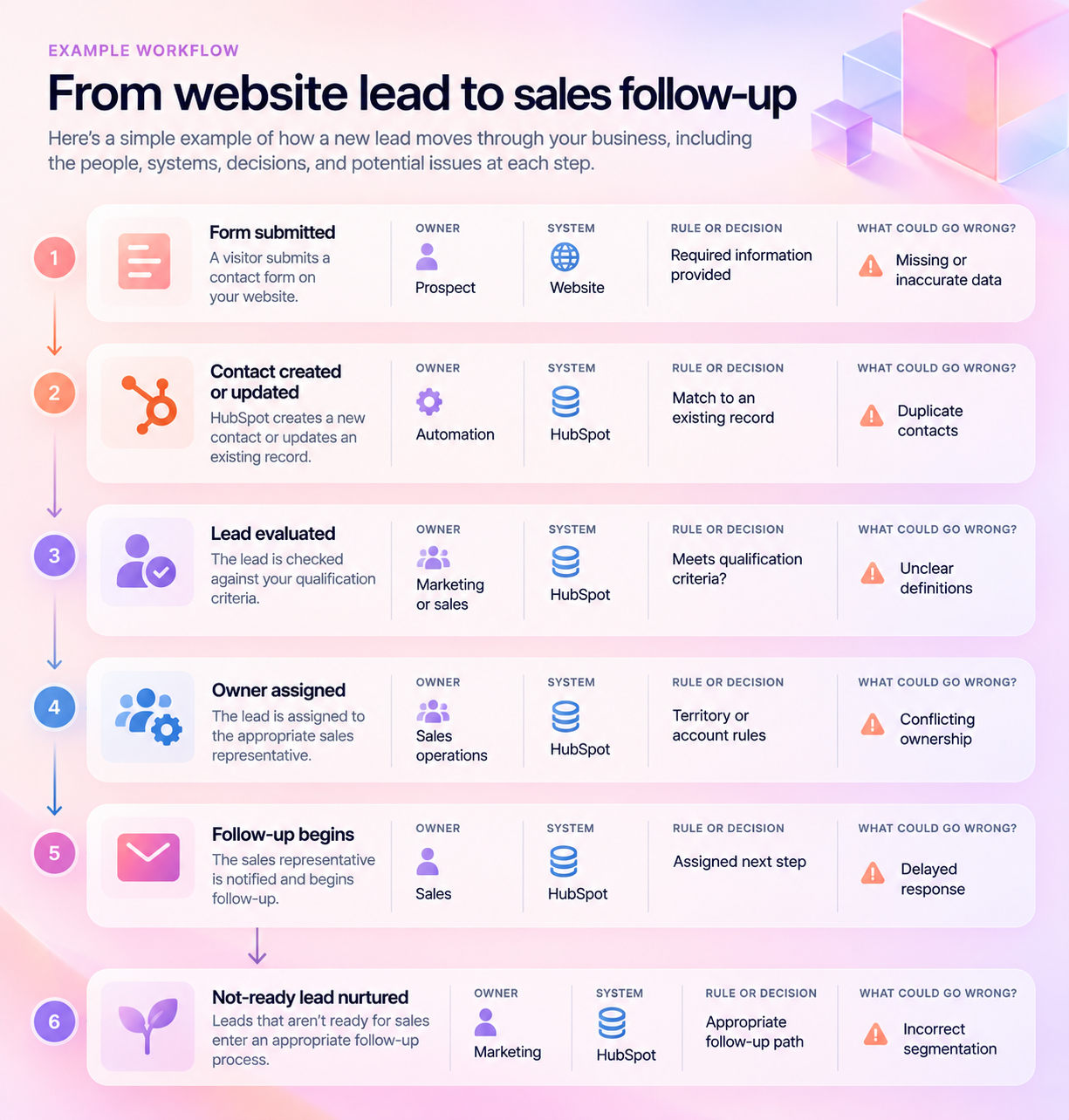
Once the steps are clear, you can turn the table into a flowchart.
A basic flowchart uses rectangles for tasks, diamonds for decisions, and arrows to show where work goes next.
If multiple departments are involved, a swimlane diagram can be useful. It separates the steps by team or owner so you can see exactly where handoffs happen.
IBM's process analysis guide explains how flowcharts and swimlane diagrams help teams identify bottlenecks and clarify responsibilities.
Start with whatever format your team can understand and maintain.
You can always make it prettier later.
Which parts of a workflow should you automate?
Not every step is a good candidate.
The strongest automation opportunities tend to involve repetitive tasks with clear rules, reliable information, and predictable outcomes.
| Often good candidates for automation | Often better handled by people |
| Creating or updating records | Resolving conflicting information |
| Sending routine notifications | Handling sensitive customer conversations |
| Routing requests using clear criteria | Approving unusual exceptions |
| Moving data between connected systems | Making high-impact decisions with incomplete context |
| Triggering standard follow-up tasks | Deciding when established rules should change |
This isn't an absolute divide.
AI may help people evaluate information or prepare recommendations in situations that involve judgment. And some approvals can be automated safely when the criteria are clear and the consequences are limited.
The important thing is to match the level of automation to the reliability of the information and the risk of getting it wrong.
A useful question is:
If this automation makes a mistake, what happens next?
If the answer is "Someone gets an extra notification," the risk may be manageable.
If the answer is "A major customer opportunity goes to the wrong team and nobody notices," you need stronger safeguards.
Build in ways to detect errors, handle exceptions, and involve people when necessary.
What mistakes should you avoid when mapping workflows?
Most workflow-mapping problems come from skipping the less exciting parts.
Mapping the ideal process instead of the real one
Don't document what everyone wishes happened.
Document what actually happens, including workarounds and exceptions. Then decide what should change.
Starting with a tool instead of a problem
"Let's use AI for this" isn't a business objective.
Start with the delay, cost, error, or frustration you want to address. Choose the technology after you understand the work.
Ignoring unusual situations
The standard path may be easy to automate.
The exceptions are where things tend to break.
Make sure the workflow includes a clear path for situations that don't fit the rules.
Leaving out the people who do the work
The person responsible for a process often knows details that aren't captured anywhere else.
If they aren't involved, you're likely to miss something important.
Forgetting about ownership after launch
Automations don't maintain themselves.
Rules change. Data changes. Teams change.
Someone needs to be responsible for making sure the workflow continues to do what the business needs.
How do connected systems and organizational memory support better automation?
Mapping a workflow often reveals that the work itself isn't the only challenge.
The information needed to complete the work is spread across different systems, teams, and people.
That's where customer systems, connected workspaces, and organizational memory come into the picture.
-
Customer systems manage the information and interactions behind customer relationships. In our example, HubSpot might store the lead, track their activity, and manage assignment.
-
Connected workspaces help teams coordinate information, tasks, and decisions across the tools they use.
-
Organizational memory preserves the knowledge behind how work gets done: the rules, decisions, exceptions, processes, and lessons that people need to understand.
Think about the lead-routing exception we discussed earlier.
HubSpot might know which company the lead belongs to.
But the reason that company's opportunities always go to a particular account manager may be documented somewhere else. Or worse, it may exist only in someone's head.
Automation needs more than a contact record. It needs the right business rules and context to make the correct decision.
That doesn't mean every piece of company knowledge belongs in your CRM.
It means the systems and people involved in a workflow need access to the information that matters.
We've explored this distinction in Customer Context + Organizational Context: Why You Need Both.
When you connect customer information with the knowledge behind your processes, you create a stronger foundation for automation and AI.
And you may be able to do it without replacing the tools your team already uses.
How do you know when your workflow is ready for automation?
Before you start building, run through this checklist.
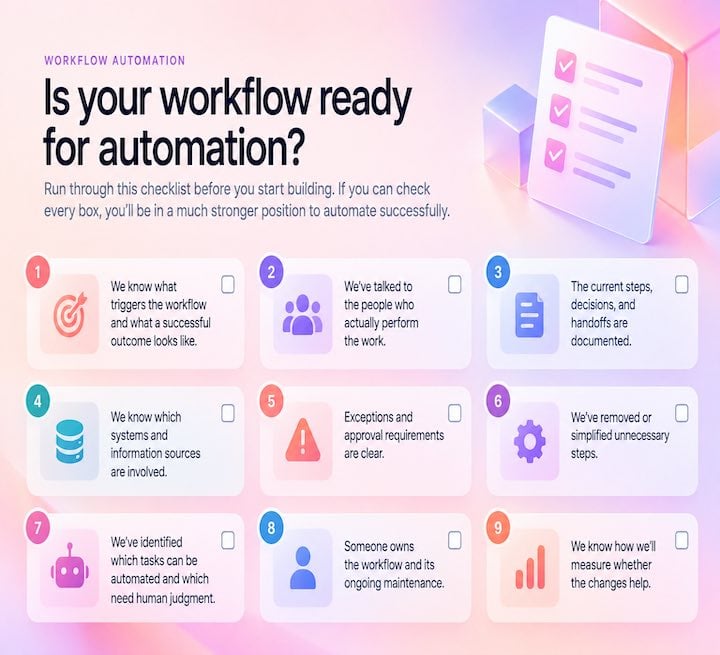
If you can't check every box yet, that's okay.
The checklist isn't a test you need to pass before you're allowed to use automation.
It's a way to spot gaps before those gaps become expensive problems.
Map the work first. Then make it work better.
Automation can save time, reduce repetitive work, and help teams operate more consistently.
But it can't make a confusing process clear on its own.
That takes understanding the people, systems, information, and decisions involved.
Start with one workflow that's causing frustration. Sit down with the people who handle it. Map what happens today, including the workarounds nobody thought to document.
Then ask what could be eliminated, simplified, standardized, or automated.
You might discover a great opportunity for automation.
You might also find that the biggest improvement doesn't require new software at all.
Either way, you'll be making a more informed decision.
At media junction, we help businesses connect customer systems, workflows, and organizational knowledge so people and technology can work better together.
If you're trying to improve a process but aren't sure where automation fits, talk with media junction. We can help you understand what's happening today, identify the friction, and determine what should come next.
Because the best automation doesn't just make work happen faster. It makes the work better.